
CS 111
Computer Science I
Fall 2025
Assignment 2
Due: Thu, Sep 11, by 11:59pm
Description
|
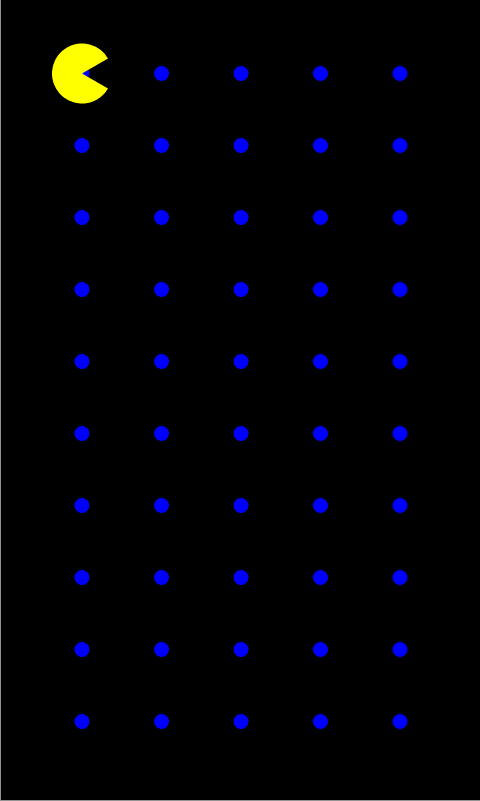
This assignment will exercise the concept of repetition using while loops. The goal of the assignment is to create a simple Pacman app. The app will show a Pacman moving along a grid, collecting pellets along the way.
|
Preliminaries
Start DrJava and create a new project named
PacmanApp in folder
cs111/hw . See the Readings List notes on how to create a new project.
To set the whole canvas to a given color put this command as the first line in
public void run():
canvas.setBackground( "desired-color" );
Requirements
Inside
PacmanApp write the procedures described below. Make sure to test each procedure carefully before moving on to the next one.
Do not resize the phone/canvas by dragging the corners.
You may use fixed numbers only for:
- Pacman's shape (for example: 20 for Pacman's radius, 300° for Pacman's pie shape)
- pellet size (for example: 5 for the radius of each pellet)
- the delay in the animation (for example: 0.1 seconds)
Here are the detailed descriptions of the procedures for the app along with sample test cases:
drawDotsRow( startX, startY, dotsDist, numDots )
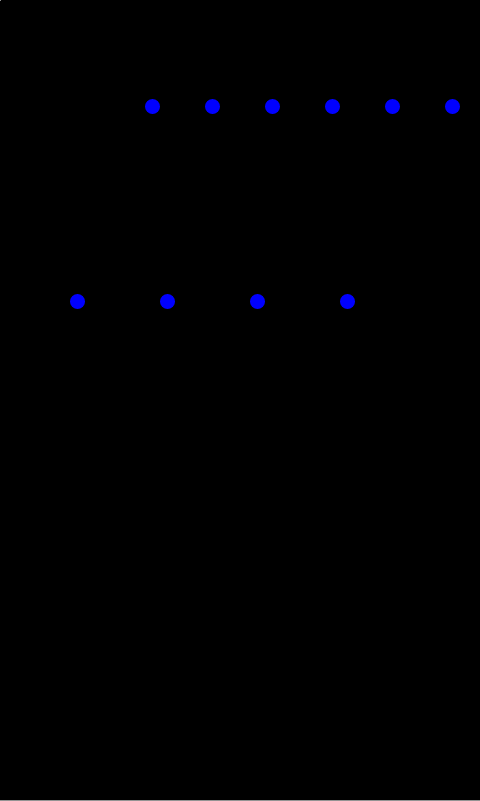
Starting at (startX,startY) draws a row that has numDots circles/pellets whose centers are dotsDist units apart. You may use a small fixed number for the radius of a pellet.
(click on image to enlarge)
|
drawDotsRow( 100, 70, 40, 6 );
starting at (100,70) draws 6 dots whose centers are 40 units apart
drawDotsRow( 50, 200, 60, 4 );
starting at (50, 200) draws 4 dots whose centers are 60 units apart
|
movePacmanAlongRow( startX, startY, endX, speed )
This procedure shows a Pacman moving left to right along a horizontal line on the screen.
Pacman starts at the given startX coordinate going right until the given endX coordinate along the level given by startY. At each step Pacman moves by the given speed units away. (You may assume that endX will always be bigger than startX.)
Initially, to keep things simple, just draw a yellow circle for Pacman. Later update the procedure to give the effect of Pacman opening and closing the mouth. To achieve this effect draw yellow pie (mouth open), yellow full circle (mouth closed), and black circle (Pacman gone) in the correct order and with a brief pause between each shape.
Recall that an animation effect is achieved with the following sequence of commands:
draw shape in some color
canvas.sleep( 0.5 ); // 0.5 is half a second; adjust to what looks good
draw same shape but in background color (to cover/hide)
You may use fixed numbers for Pacman's radius and Pacman's pie angle.
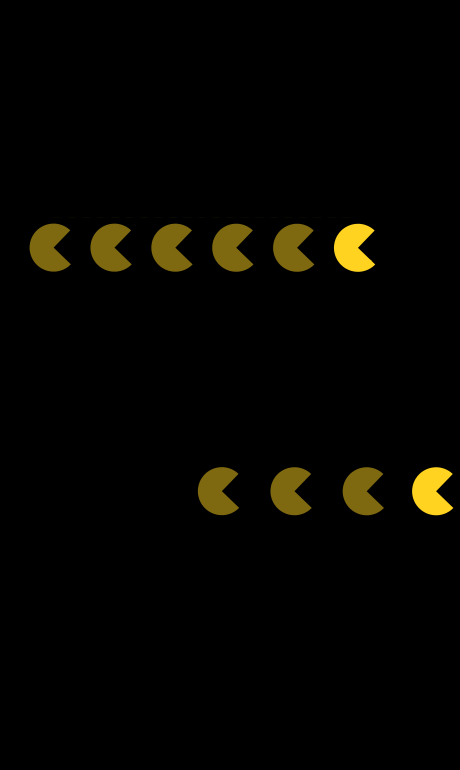
Here are a few test cases (the faded Pacmans in the image are there to suggest motion -- at each point in time there is only one Pacman on the screen).
(click on image to enlarge)
|
movePacmanAlongRow( 40, 170, 250, 10 );
shows Pacman moving along y=170 starting at x=40 and going up to x=250 jumping by 10 units each time
-
movePacmanAlongRow( 160, 340, 300, 5 );
shows Pacman moving along y=340 starting at x=160 and going up to x=300 jumping by 5 units each time
|
drawDotsGrid( startX, startY, horizDist, vertDist, numRows, numCols )
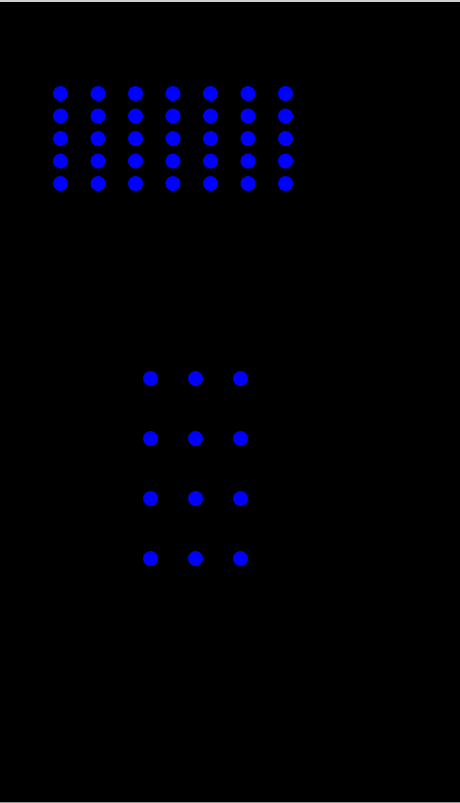
Starting at (startX,startY) draws a grid of pellets arranged in as many rows and columns as given by numRows and numCols, respectively. Along a row the centers of the pellets are horizDist units apart and between rows the centers of the pellets are vertDist units apart. The top-left pellet is drawn at the given (startX,startY).
Hint: Make use of the procedure drawDotsRow. Only one loop is needed here, even though you are drawing a grid. What do you need to repeat over and over?
(click on image to enlarge)
|
drawDotsGrid( 40, 60, 25, 15, 5, 7 );
starting at (40,60) draws 5x7 grid of dots whose centers are 25 units apart horizontally and 15 units away vertically
-
drawDotsGrid( 100, 250, 30, 40, 4, 3 );
starting at (100,250) draws 4x3 grid of dots whose centers are 30 units apart horizontally and 40 units away vertically
|
movePacmanAlongGrid( startX, startY, endX, rowSpacing, numRows, speed )
This procedure shows a Pacman moving left to right, top to bottom along the screen starting at the given (startX,startY) point.
Pacman moves along the current row up to the given endX position, and then restarts from the beginning of the next row. The vertical distance between the rows is given by rowSpacing and along each row Pacman moves by the given speed. Pacman moves along as many rows as given by numRows.
Hint: Make use of the procedure movePacmanAlongRow. Only one loop is needed here, even though you are moving on a grid. What do you need to repeat over and over?
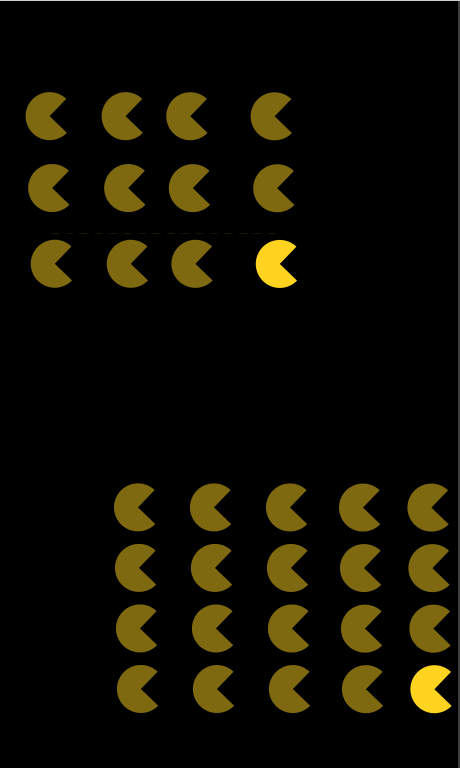
(click on image to enlarge)
|
movePacmanAlongGrid( 40, 80, 200, 50, 3, 10 );
shows Pacman moving along a grid of 3 rows starting at (40,80); along each row Pacman skips by 10 units and goes up to x=200; the rows are 50 units away
movePacmanAlongGrid(100, 350, 300, 40, 4, 5);
shows Pacman moving along a grid of 4 rows starting at (100,350); along each row Pacman skips by 5 units and goes up to x=300; the rows are 40 units away
(the faded Pacmans in the image are there to suggest motion -- at each point in time there is only one Pacman on the screen)
|
|
playGame( numRows, numCols, speed )
Shows a Pacman moving along a grid of the given numRows and numCols rows and columns, respectively. Along a row Pacman is moving by the given speed.
The procedure starts by setting the background color (even though it is also set in public void run()).
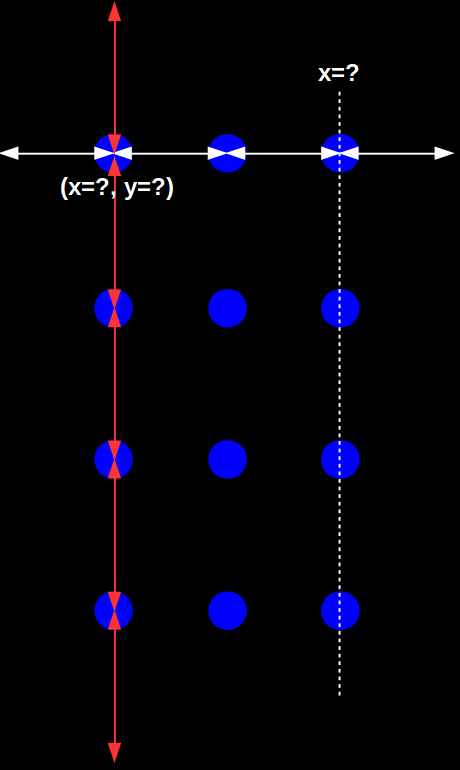
(click on image to enlarge)
|
There are no loops in this procedure -- it simply computes:
- the horizontal and vertical spacing of the pellets (the lengths of the white and red arrows)
- the location of the upper-left pellet (this is where Pacman starts)
- the X coordinate of the last column of pellets (this is how far Pacman goes on each row)
After the information is computed, this procedure:
- draws the grid of pellets
- lets Pacman move along the grid
|
For computing the spacing:
- you may initially use 400 for the total canvas width and 800 for the total canvas height
- eventually, replace 400 with
canvas.getWidth() and 800 with canvas.getHeight(), so that the game will work on small and large phones
To run the app, decide on the number of rows and columns of pellets, and on Pacman's speed. For example:
// Pacman moves on 4x3 grid at speed 20 along the rows
playGame( 4, 3, 20 );
// Pacman moves on 12x8 grid at speed 15 along the rows
playGame( 12, 8, 15 );
add sound effect
Download to folder hw/PacmanApp/res/raw the following file:
wakawaka.wav (right-click, Save As...)
Use the following commands to add sound effect to the app. Identify which procedure above should be modified and where these lines should be placed in that procedure:
canvas.setBackgroundMusic( "wakawaka.wav" );
canvas.stopBackgroundMusic();
show test cases
In public void run(), for each procedure give at least three test cases of your own that demonstrate that your code is correct.
These would be commented out with // as we do in class.
flip orientation
Try to flip the phone orientation from portrait (vertical) to landscape (horizontal) by putting at the top of public void run():
canvas.setLandscape();
The game should still play correctly without any other modifications even though the width and height of the phone are now different.
What to turn in
Turn in the Java code for the app in the
Assignment 2 dropbox:
- open Finder/FileExplorer and go to folder
cs111 (where you run DrJava)
- go to
hw/PacmanApp/src/cs1/PacmanApp (this is where your code is saved)
- upload the file
PacmanApp.java (ignore the other files)
Make sure your code is saved. If when you close DrJava it warns you that the file is not saved, save it and re-upload the code.